Payden Academic Center Classroom Technology Guide
- Turning On/Off the Projector
- Using the Lectern Computer
- Connecting My Device
- Adjusting the Volume
- Wireless Projection from Apple Devices
- Classroom Technology Videos
Turning On/Off the Projector
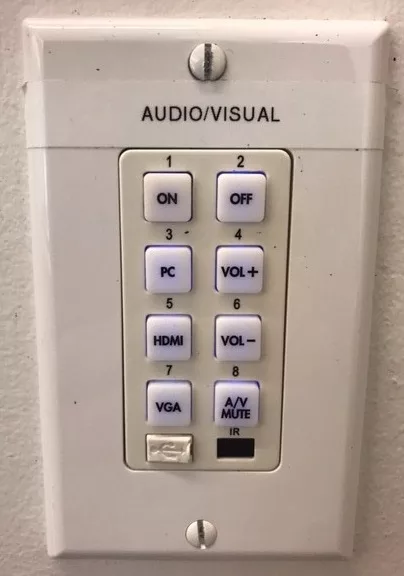
Audio/Visual in the Payden Academic Center is controlled via a wall-mounted control panel. Most are located near the room’s entry doors and light switches, although each room varies slightly. If you are in tiered classroom 103 or 104, review this guide instead.
- Press ON to turn on the projector. Allow 30 seconds for the projector to warm up before an image is displayed.
- Press OFF when the projector is no longer needed.
Using the Lectern Computer
Each room is equipped with a built-in lectern computer. You do not have to turn on the computer, but if you do not see any display on the monitor, it might be in standby mode.
- Press any key on the keyboard to wake up the computer.
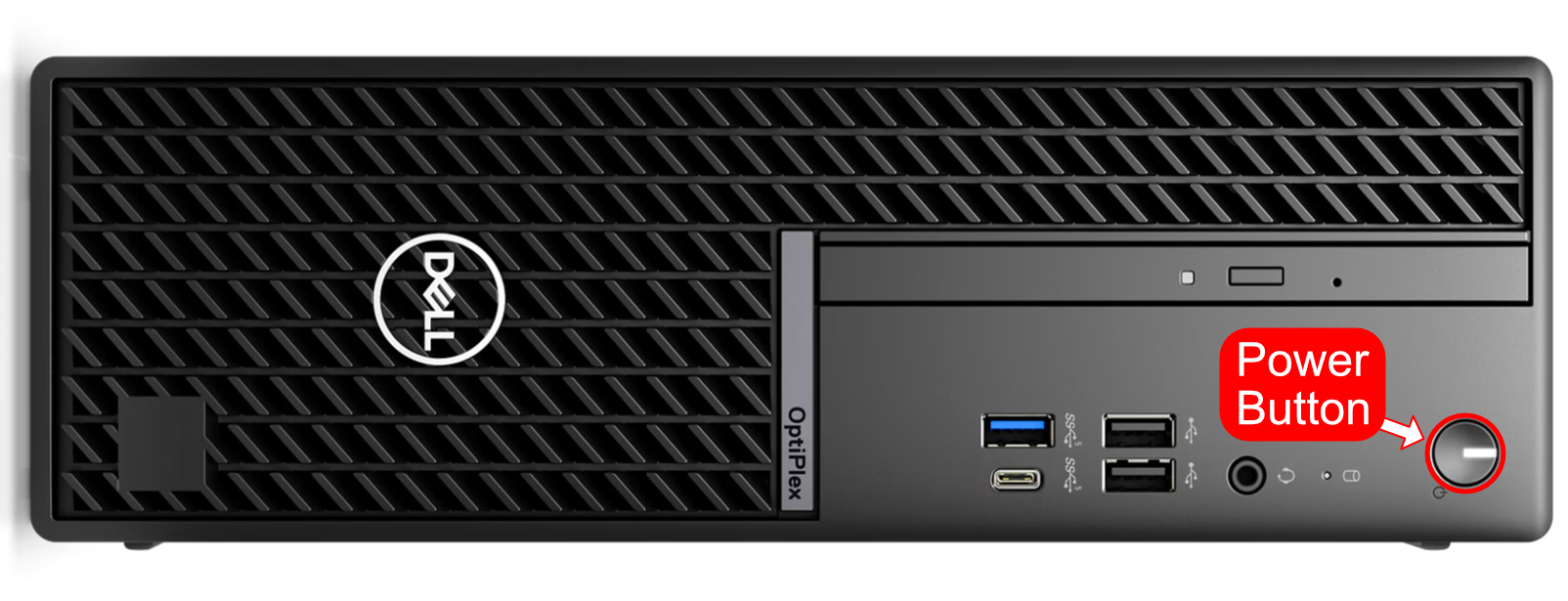
- If the computer does not resume from standby, you may power it on by pressing the power button.
- Extend the keyboard tray with mouse from underneath the desktop.
Connecting My Device
If you have a personal device, i.e. laptop, you may connect it to Trinity’s audio/visual equipment using built-in cables on the lectern. Connections are included for HDMI and VGA + 3.5mm audio.
- If your personal device connects via HDMI, you do not need to use the 3.5mm audio cable.
- If your personal device only has Thunderbolt or USB-C connections, an adapter to HDMI is required. Adapters can be purchased from electronic retailers for less than $15. Most new laptops, including MacBooks, only have USB-C connections available.
- Connect your personal device using built-in cables on the side of the lectern by lifting the panel cover plate and extending the wire.
- After your laptop is connected, use the wall mount control to turn on the projector and switch to the HDMI or VGA input by pressing the appropriate button.
Adjusting the Volume
You can adjust the classroom’s speaker volume using the Vol+ and Vol- buttons on the A/V wall control panel.
Wireless Projection from Apple Devices
All classrooms in the Payden Academic Center are equipped with AirPlay technology, and can project wirelessly from Apple devices, including MacBooks, iPhones, and iPods.
Payden Standard Instructor Station Video
Here is a short video about the standard classrooms in the Payden Academic Center.