Google Multi-Factor Authentication
Trinity accounts require Multi-Factor Authentication (also known as MFA or 2FA) to be set up in order to access Google Apps or student Gmail inboxes.
Trinity employees will never ask you for your password or your temporary multi-factor authentication code. If you have any trouble accessing your account, contact Technology Services.
- How to set up Google MFA using a web browser at login
- How to set up Google MFA using a web browser after login
- How to set up Google MFA using the Gmail App
How to set up Google MFA using a web browser at login
-
- Log into Trinity student gmail using your preferred web browser.
- Upon signing in, you will receive a prompt titled Don’t get locked out. Click the Enroll button at the bottom of this prompt. If you’re not receiving this prompt, don’t worry! Skip to the section How to setup Google MFA using a web browser after login.
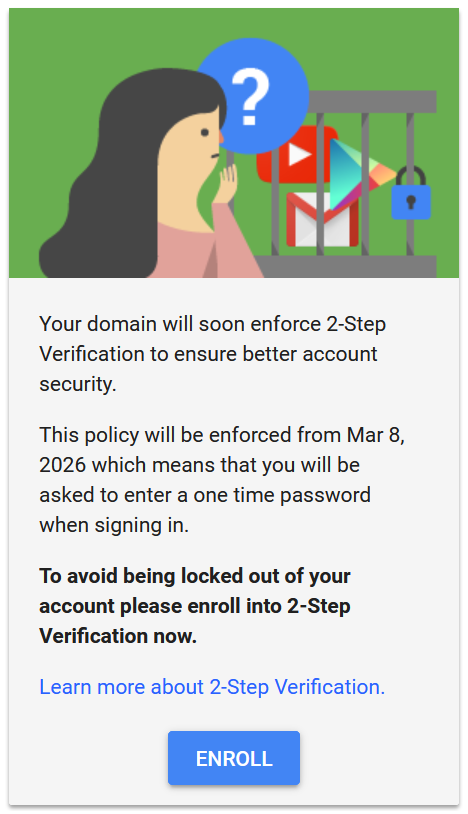
- You should now see a page titled 2-Step Verification. Click the Turn on 2-Step Verification button at the bottom of this page.
- A pop-up titled Add a phone number will appear. First, type in your phone number, and then choose between receiving a code via text messages or through a call.
- Click Next to continue.
- You will asked to confirm your phone number. Click Save.
- 2-Step Verification setup is now complete!
How to set up Google MFA after login
- Click on your initial in the upper-right corner and then select Manage your Google Account.
- Click Security & sign-in.
- Select 2-Step Verification.
- Select Phone number and type in your phone number. If prompted to approve this number, click Approve.
- At the 2-Step Verification screen, press Turn on 2-Step Verification.
How to set up Google MFA using the Gmail App
- Log into the Gmail App with your username and password.
- In the upper-right corner, press on your initials.
- Press Manage your Google Account.
- Press Security & sign-in.
- Press 2-Step Verification.
- Press Phone number. First, type in your phone number, and then choose between receiving a code via text messages or through a call.
- Press Turn on 2-Step Verification.