Campus Wireless Network
All classrooms and residence halls on campus have high-speed Wi-Fi access. Many other areas, such as the dining hall, deli, faculty wings, and auditoriums, also have Wi-Fi access. If there is a particular area on campus where you would like to see Wi-Fi expanded to, please contact us.
Connecting to Wi-Fi
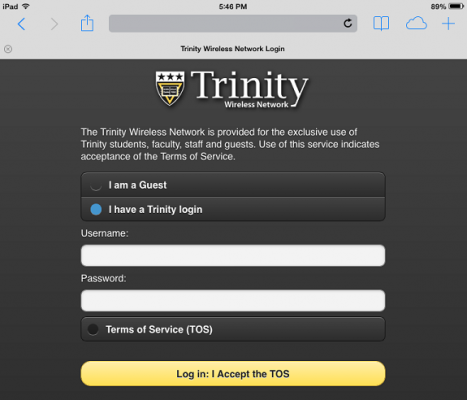
- Configure your device to connect to wireless network Trinity.
- Open a web browser to review Trinity’s Terms of Service in order to use the campus Wi-Fi.
- For the best experience, log in with your Trinity username and password.
Fixing slow Wi-Fi connections on Apple devices
The following instructions are applicable to iPhones, iPads, and MacBooks.
- Open the Settings app
- Click on Wi-Fi
- Find Trinity in your list of available Wi-Fi networks, and then access the settings for it by:
- iPhone and iPad: Click on the blue i button next to the Trinity network.
- MacBook: Click on the (…) button next to the Trinity network.
- Find Private Wi-Fi address and change it to Off.
- Find Limit IP address tracking and toggle it Off.
- After both settings have been turned off, disconnect from the Trinity network and then reconnect.