Using Your Office Telephone
Trinity provides faculty and staff with AudioCodes 440HD telephones. Out of the office? The Skype for Business mobile app can also be used to make calls if you do not have access to your office phone.
About the AudioCodes 440HD Office Telephone
- Phone Layout
- Transfer a call
- Managing Voicemail
- Put a call on hold and make another call
- Make a conference call
- Merging two phone calls
- Create a speed dial
- Remove a speed dial
- Forwarding Calls
- Changing my ringtone
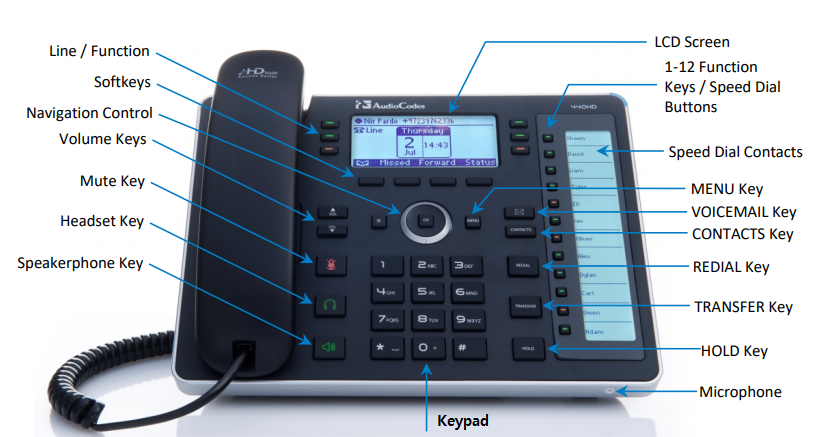
Phone layout
Call transfer
There are two methods to call transfers. Most staff/faculty should use Blind Transfer.
- Blind Transfer: A blind transfer does not require the other person to answer before accepting your call transfer. Most staff/faculty should use this transfer method.
- Answer the call and press the TRANSFER button.
- Enter the extension and press the TRANSFER button to complete the transfer.
- Consultation Transfer: A consultation transfer requires the transfer recipient to answer the call before you send the transfer over.
- Answer the call and press the menu softkey.
- Select Consultation transfer and dial the extension.
- Wait for the other person to answer and press TRANSFER to complete the consultation transfer.
Managing Voicemail
Review Managing My Voicemail for steps on how to listen to your voicemail and change your greeting or PIN code.
Put a call on hold and make another call
Press the hold key, and then press the menu softkey, select New Call and finally dial in the number.
Make a conference call
- During a call, press the Conf softkey.
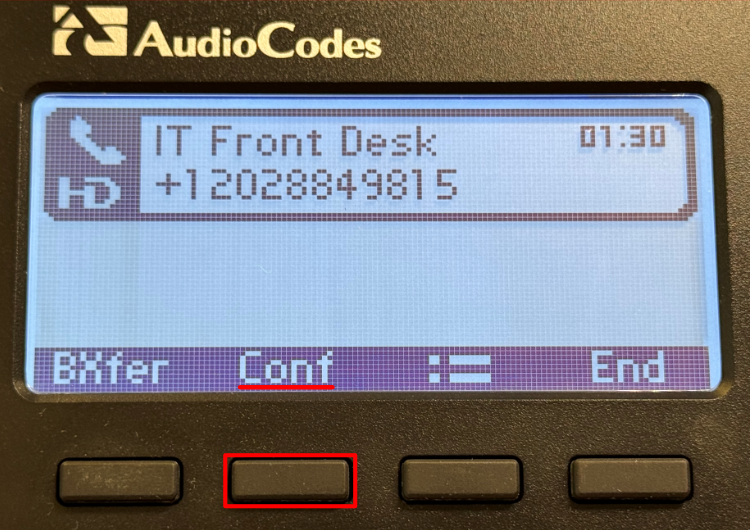
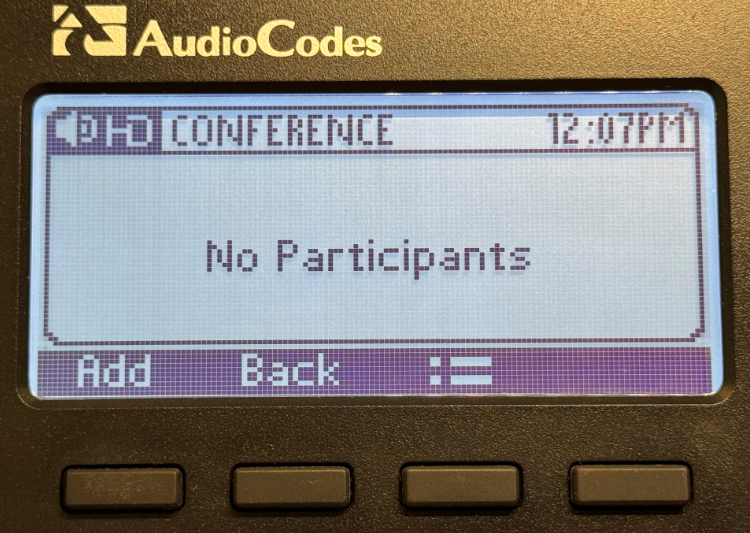
- Dial the 2nd participant to create a conference bridge.
- Using the softkeys, you may add additional participants (currently limited up to 50), remove and mute.
Merging two phone calls
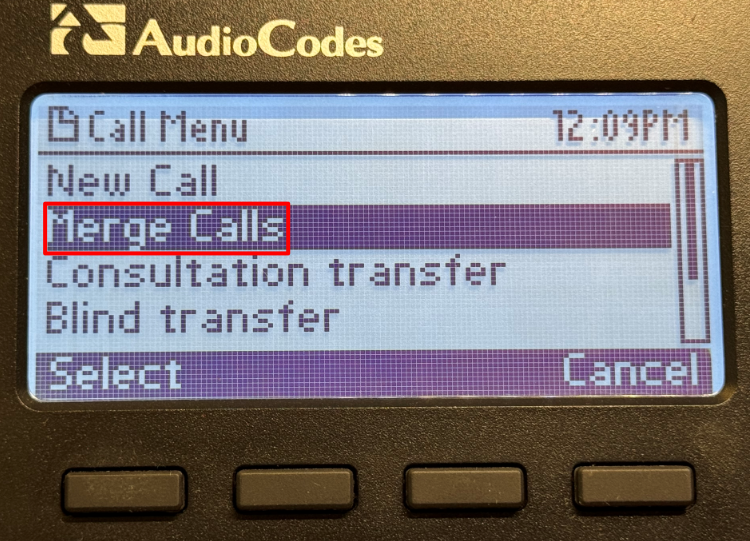
- With one call active and another on hold, press the menu softkey.
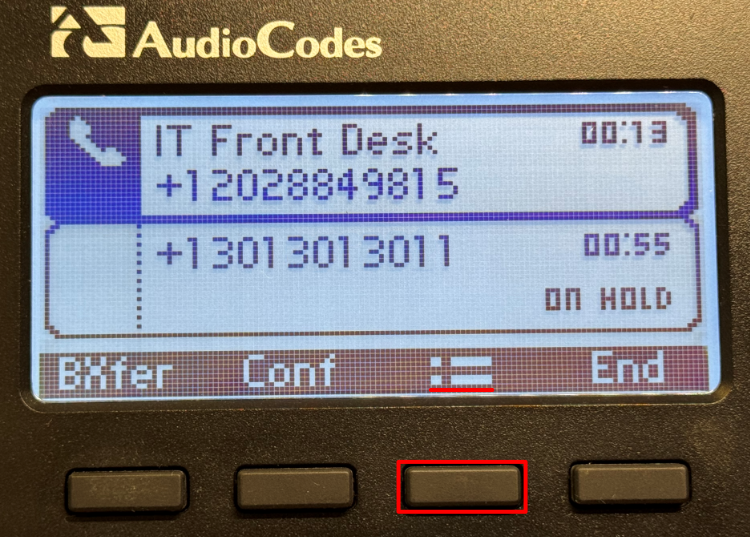
- Select Merge Calls.
Forwarding Calls
- Press the Forward softkey, scroll down and select Forward to a Number.
- Enter the number to which you want to forward the calls, and then press the Start softkey. To deactivate call forwarding, press the Forward softkey and then select Do not forward calls.
Create a speed dial
Press any empty speed dial key and follow the on-screen instructions. You may select an entry from the corporate directory. To edit an existing speed dial, press and hold, and then follow the on-screen instructions.
Remove a speed dial
- Press and hold the speed dial key you want to remove for a couple seconds
- Clear out the number and key label.
Changing my ringtone
- Press the MENU button, located left of the voicemail button.
- Scroll down and select the Settings softkey.

- Select Ring Tone.
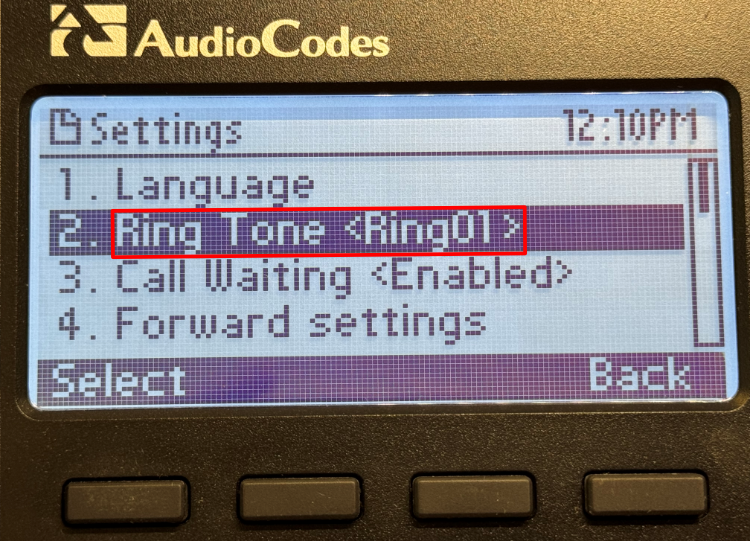
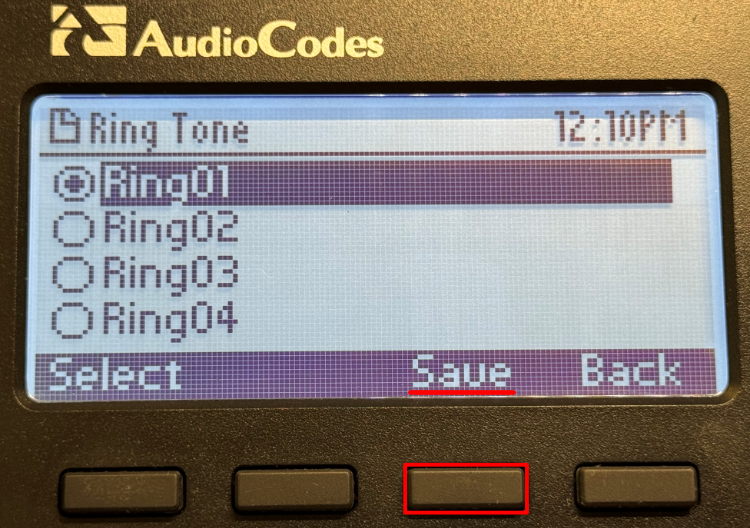
- Select one of 11 ringtones and press the Save softkey.